How do I add a charge card in the Wattify app by scanning it with NFC? (Android only)
What do you need?
- The Wattify app, version 1.0.16 or higher, on an Android phone with NFC.
- An account that may create charge cards: a client, employer, employee, organisation or reseller. If the app shows no button to add a charge card, your account is not allowed to; ask your Wattify contact.
- The charge card itself.
Step 1. Open your charge cards
Tap Profile at the bottom and choose My charge cards. Tap + at the top right or the Add Card button.
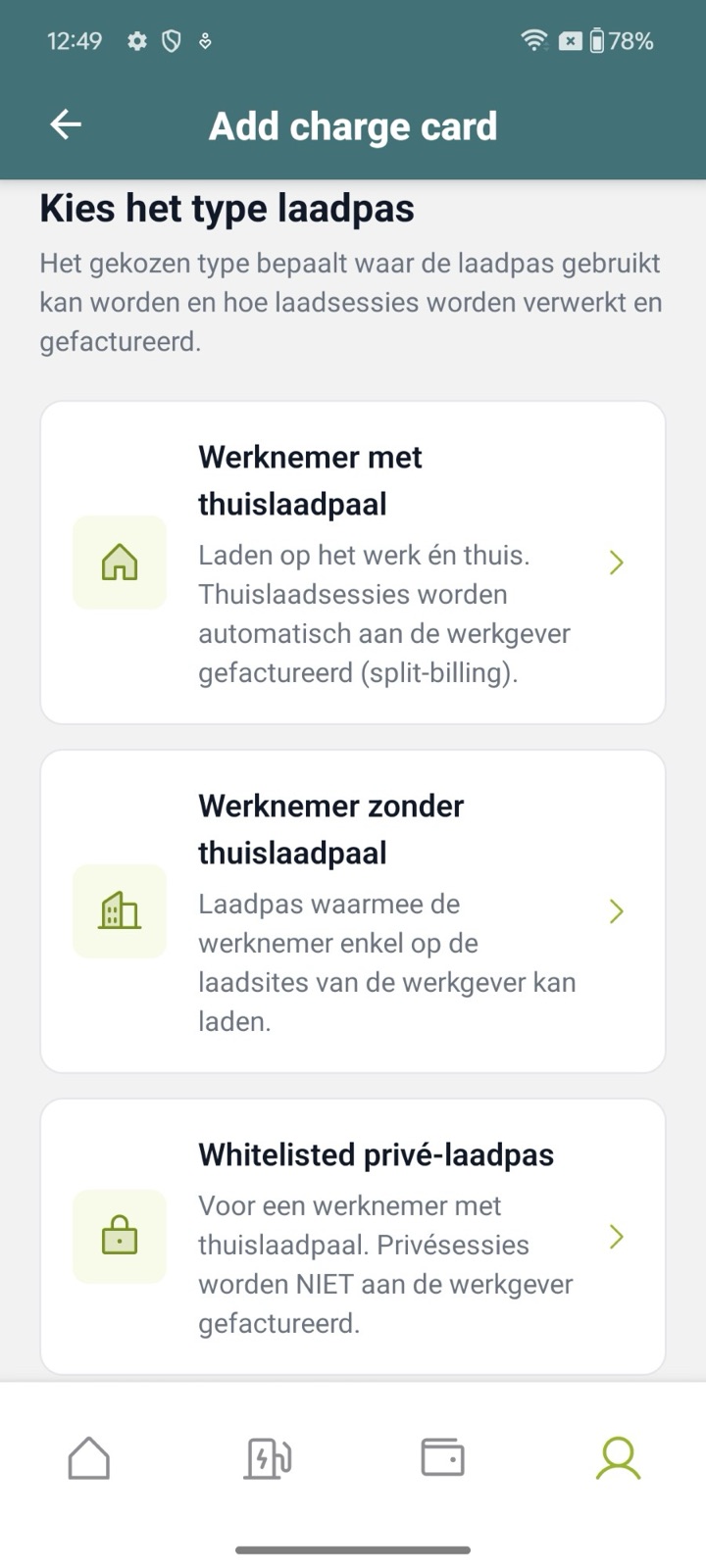
Step 2. Choose the card type
You see the same types as in the charge card wizard on mijn.wattify.be, and only the types your account may create. An employer, for instance, chooses between Employee with a home charger (split billing), Employee without a home charger and Whitelisted private charge card; a client chooses between a card for the Wattify network and a private card.
Step 3. Fill in the details
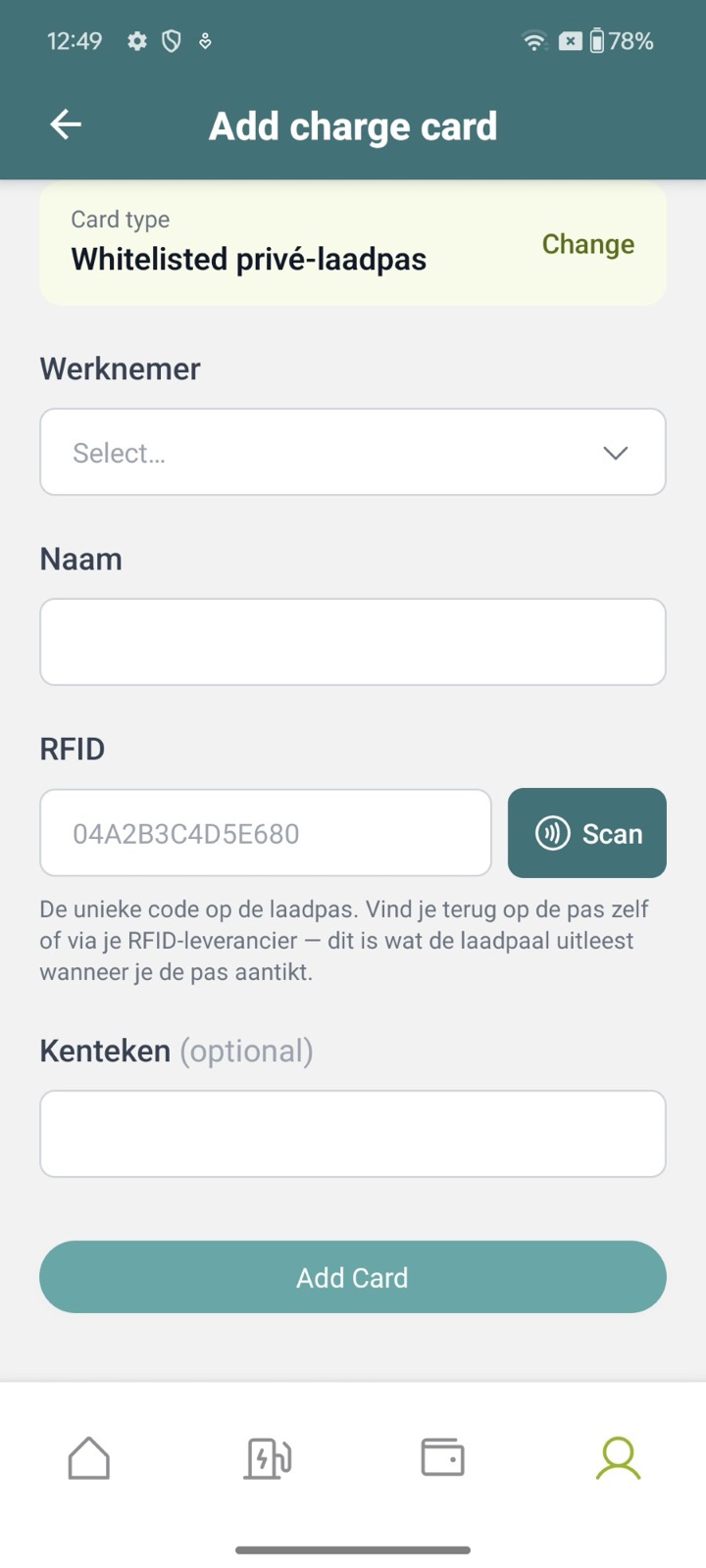
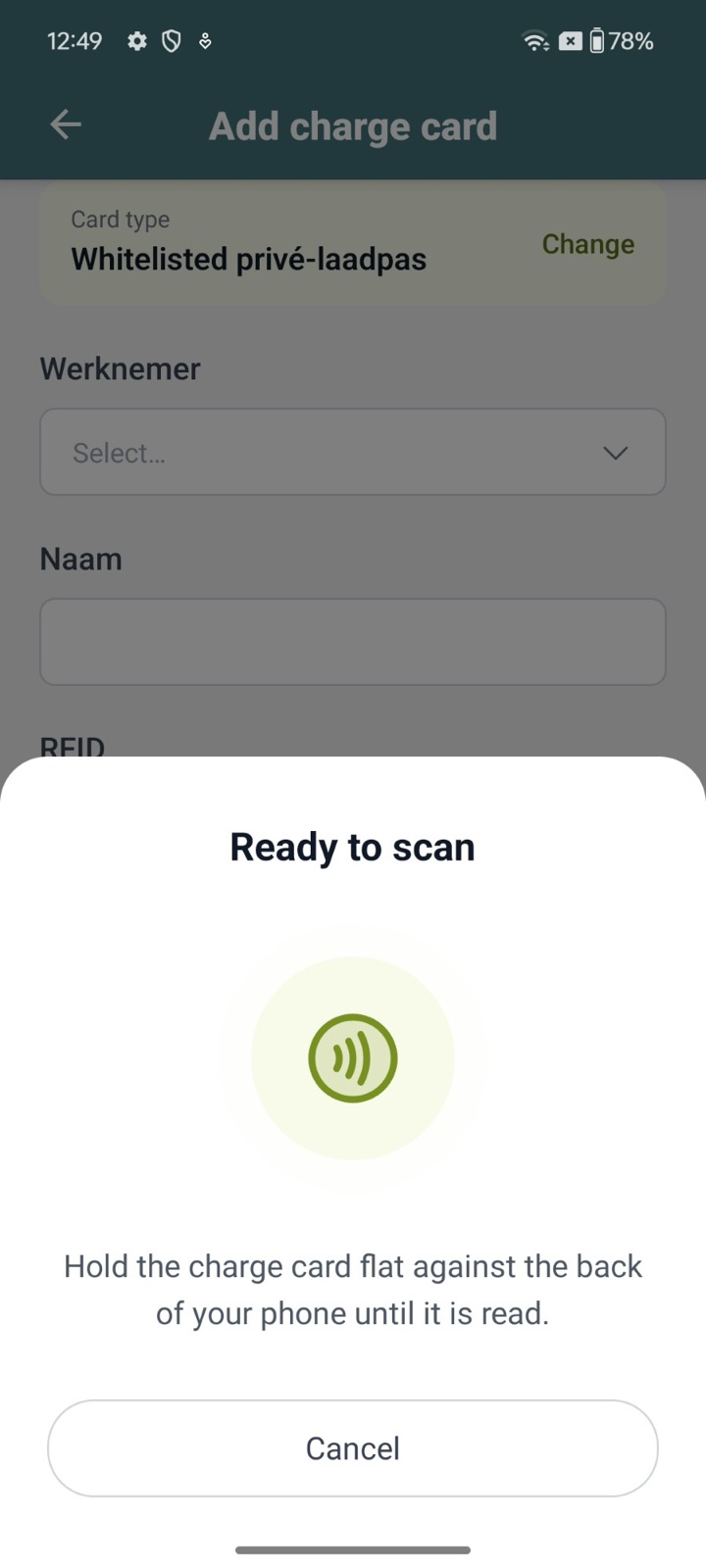
If asked, choose the employee the card is for; the card name is then filled in for you. At RFID, tap Scan and hold the card flat against the back of your phone until the number appears in the field. The licence plate is optional.
Step 4. Confirm
Tap Add Card. For a split-billing or private card you also confirm how the charging sessions are invoiced, as on the website. The card appears in your list right away and works as soon as the charge point knows it.
Good to know
- Android only. An iPhone cannot read the chip of our charge cards (MIFARE Classic); Apple does not allow it. On an iPhone there is no Scan button, so you type the number printed on the card or given by your RFID supplier.
- If NFC is off on your Android phone, the app asks you to turn it on in the phone settings.
- The number is stored the way the charge point reads it: capitals and digits, without colons or spaces.
- A number that already belongs to another charge card is refused.
- If you prefer to read the number first without creating the card, an app such as NFC Tools still works, see the RFID tags category.
Did this answer your question
Thank you for your feedback
Did not find an answer?
Our team is just an email away and ready to answer your questions